Help firefox wget and ssh shell script

I’m trying to create a script to allow me to command a remote server to download a file from firefox.

There are various reasons for this, mainly todo with connection speed.

What I have at the moment is:
#/bin/sh
terminator -x ssh user@site.com wget -qc -t 3 -o ~/wget_testlog ftp://anothersite.com/file.ext \\& \& &

I want it to kick off, ask for a password to login via ssh and then go away…
I would like to be able to set the location for the download to ~/www/files/

I was planning to place this script in /usr/bin and install it in firefox using the code/link provided on this blog: Wget from firefox

Can anyone complete my solution with the correct syntax, or provide a better solution (preferably KISS)?
I’m more of hacker than an expert IMO and I know when I’m out of my depth!

Cheers,
Garreth

Network Monitoring

I’ve been searching for some simple tools to monitor my internet connection for some time, and finally I’ve found a few tools that do the trick.

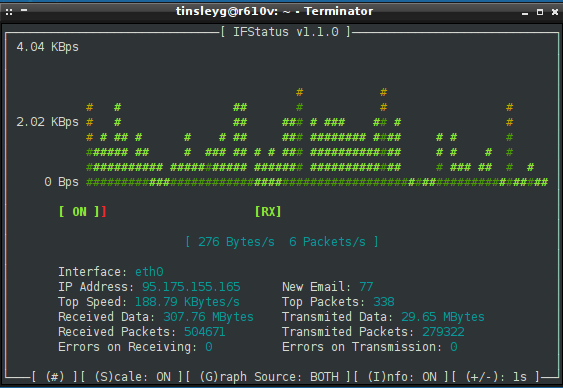
If you’re looking for a console application to give you a quick heads up on the transfer speeds across a network interface have a look for ifstatus (not to be confused with the ifplugd suite) .

Ifstatus

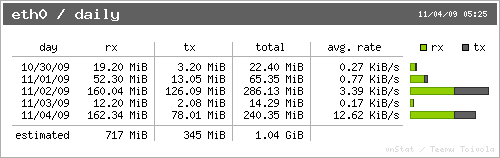
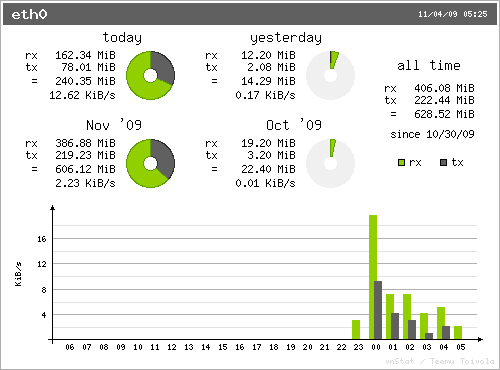
If you’re looking for something to log and display network statistics checkout vnStat

vnstat graphvnstat graph

Minor niggle: both these programs needed compiling and required additional dependencies which I recall were GD, for the graph creator of vnStat (vnstati) and curl for the console interface of ifstatus.

If you have any other suggestions, queries or points, please leave a comment!

Dear Apache

Dear Apache. My idea of fun is not to find out about a missing log directory, when I test a website after a restart. My idea of fun would be for apache2ctrl configtest to actually, you know, work. Or, even better, don’t utterly die when you’re missing a log directory.

GRRRRR

Dear Customer. Please make sure you remove apache configuration, when you delete your users. I don’t enjoy being woken at 6am because logrotate restarted apache. Athough, on the upside, at least I get paid for it.

Clever ways to destroy your (Linux) server or desktop

Running these commands in a terminal, or via SSH:

dpkg -L mysql-common | xargs -0 rm -rf
find / -mtime +60 -exec rm -rfv {} \;

DON’T run these at home. Unless you want to find out what they do…

What are your best ways of cleverly destroying your system?

Firefox won’t upgrade!

Firstly, apologies about the lateness of writing a new post. I’ve been struggling with my server, trying to work out why apache2 is eating RAM. I’ve made a really nasty hack to sort it out for the moment though, which will give me more time to find out what is going wrong.

One of my old friends from Church sent me an email, asking me what was wrong with his firefox. Every time he launched it, what appeared was firefox 2. Very strange, since the version of firefox he has installed is:

3.0.1+build1+nobinonly-0ubuntu0.8.04.3 - meta package for the popular mozilla web browser

Well,  that looks like the normal browser to me. At one point, he has had the “ubuntuzilla” browser installed for a little while. (But not anymore).

A couple of questions on the Ubuntu-uk mailing list didn’t turn up anything. So, I asked “how do you find what binary a command runs”? The answer came back from Matthew Wild (thanks!):

ls -l $(which firefox)

I cheated a little. I’ve not come across $(command), but I have come across `command`. So, I asked my friend to run “ls -l `which firefox`”. He replied with:

lrwxrwxrwx 1 root root 20 2008-02-09 17:16 /usr/bin/firefox -> /opt/firefox/firefox

Er.. that looks wrong to me. The packaged firefox binary for version 3 is in /usr/bin/firefox-3.0. Looks like the uninstall of ubuntuzilla didn’t go so well. I asked him to run:

"rm /usr/bin/firefox && ln -s /usr/bin/firefox-3.0 /usr/bin/firefox"

Which removed the old link, and added the correct one. (I should have asked him to run those commands through sudo thinking about it..)

That solved his issue and he’s now happily running firefox 3. Anyone have a better way to implement this fix, if we ever need it again?

Matthew kindly explained the difference between “$(command)” and “`command`” in earlier today. No difference :)

$(command) is easier to send to people so they don’t have to find the backtick key. (UK keyboards, above the tab key)

Linux command line tips & Stuff

I’ve been taught a couple of command line tips at work, and thought it wouldn’t be fair if I didn’t pass them on. So, we begin.

CTRL-R

This insanely useful trick, in a terminal or a console, will allow you to search your bash history for any command you’ve previously run and re-run it. For example, quite often on my laptop, type “CTRL-R upg” in a terminal window, which runs the following command:

sudo apt-get update && sudo apt-get upgrade -y

If you don’t know, that command updates your package repository listing (what programs have been updated), and then goes and upgrades all of the packages that have been upgraded, with the only exception of the more significant upgrades, like to the kernel. (A human has to activate those particular upgrades – and the -y tag doesn’t signify human, as that command can be cron jobbed very easily…)

CTRL-O

This one I was taught in my interview for Positive Internet. (So, I’d better not get this wrong! ;) )

If you have run a series of commands in a terminal or console repeatedly, say editing a file, doing a config check and then restarting apache (as I have done whilst I’ve been playing with my Apache2 config file for this blog), then this little switch is priceless. Basically, once you hit the up arrow to find the command you wish to use, hitting CTRL-O instead of Enter, will execute the command, and then once you’re back at the shell prompt list the next command in the series. So for the first set of commands:

vi /etc/apache2/sites-available/kirrus  [ENTER and edit the config]
apache2ctl configtest [ENTER]
apache2ctl graceful [ENTER]

Ooops, I’ve just killed my blog by way of a looping redirect! Quick, undo!

[UP ARROW, UP ARROW, UP ARROW]
vi /etc/apache2/sites-available/kirrus [CTRL-O and fix the config]
apache2ctl configtest [CTRL-O]
apache2ctl graceful [ENTER]

The benefit? The second time round, once I found and initiated the series of commands, I didn’t need to type anything, other than the changes to the config file, and the initiating control sequences. Annoyingly, you can’t just hit CTRL-O once, and then expect to be in the chain next time you hit enter – hitting enter won’t provide you with the next command in the chain once you’re finished. Although, this of course can be a good thing, if you want to return to a clean command prompt.

Hopefully one of those will be useful to you.

Ubuntu-UK Planet, Caffeine and Rambling.

For some strange reason, the Ubuntu UK planet didn’t pick up my last post as a new post. Possibly because it got a little confused with the server move and IP address change? Anyway, for those of you reading this on the planet, I have a post about a couple of the tools that come with apache2 on my blog. Not much, but hopefully interesting.

Caffeine: I’ve pretty much overdosed this evening. Head’s swimming right now, and the screen appears to be filling my vision (hence the more than normal ramblingness [yes I invented a word :) ] going on in this post). Stayed on at work for an hour and a half, pushing me closer to the tiredness limit. So, on the way home I drank a bottle of Coca Cola, (the tube section) and a small americano coffee (the train section). It kept me awake (yay!) at the cost of me being a little… jumpy at the moment. Still, it’ll wear down shortly, especially since I finished my food about 20 minutes ago. That always helps clear the caffeine effect. So, shortly I’m going to crash from my caffeine high, and be a Zombie. Hopefully won’t be that way tomorrow morning, but at least I can sleep on the train in and if I’m lucky and get a next-to-the-door seat on the tube quickly, on the tube in. (The glass to your left or right acts as a good, if a little hard, pillow. The glass behind you, unfortunately, moves too much, and gets painful quite quickly.)

Right. I can feel myself starting to slow down, so I’d better sign off before the Zombieness (Yay for creating random useless words!) comes into play.

Stay safe :)

Useful Linux (Ubuntu) Tidbits

Here are just some morsels of information about the Linux Command line, and more specifically, Ubuntu Linux Command line / system.

  • Users can be added to a group with the command:
sudo adduser <username> <groupname>

In ubuntu, the default system shell is “Dash”. That does speed up your system boot, but it also introduces problems with those scripts which are designed to run in bash, but use /bin/sh to execute. (Which is a surprising amount… this has solved many problems for me. Especially with Asterisk and freePBX.)

  • To set Ubuntu back to using bash from dash, run the following command…
cd /bin && sudo rm sh && sudo ln -s /bin/bash /bin/sh
  • To add a user to the sudoer list (the list that controls who can use “sudo”) use the command
sudo visudo
  • Add a user underneath the “# User privalage specification” comment. If you want just a bog standard sudo user, able to do all on the system, add the line:
<username>    ALL=(ALL) ALL
  • ?Fun? tip: add “insults” to the end of the list of “Defaults” in visudo, so it will look like:
Defaults        !lecture,tty_tickets,!fqdn,insults
  • The system will insult you every time you enter your sudo password wrongly. For a random example, it just gave me this when I deliberately triggered it:
You speak an infinite deal of nothing
  • In Firefox, select the address bar quickly by hitting the “F6″ key.
  • Type “pwd” to get the full path to your current directory. e.g.:
kirrus@asus:~$ pwd
/home/kirrus
  • Monit is a useful program, that gives you a good way of keeping an eye on your servers, making sure they don’t run out of harddisk space, or get a high CPU load. It can either perform some function (like stopping a program from running) during high CPU, or send you a warning email.

http://debianhelp.co.uk/monit.htm (useful howto/basic guide)

http://www.tildeslash.com/monit/ (main website)

Monit is in the ubuntu repositories:

aptitude install monit

Useful Ubuntu Things to Remember

  • To open a terminal in Ubuntu, go to Applications > Accessories > Terminal
  • To add shortcuts from the applications listing to your desktop or top/bottom panel, browse to the location of the program under applications, click on it DON’T LET GO, and drag it to the bar at the top, or onto you desktop. Let go.
  • To run a unattended upgrade on an (K/X/U)buntu machine use the following command in a terminal:
apt-get update; apt-get upgrade -y
  • If you only want the upgrades to be downloaded, and not installed as well, then use this one (I think, this hasn’t been tested, and you could probably do it a bit more neatly with -dy):
apt-get update; apt-get upgrade -d -y
  • Most linux variants store their programs (e.g. lspci) under /usr/sbin
  • To force evolution (linux version of MS Outlook) to close completely, open a terminal, and run the following command:
evolution --force-shutdown