I thought it was probably a good time for another Ubuntu-related post, so here we go.
Window Selection
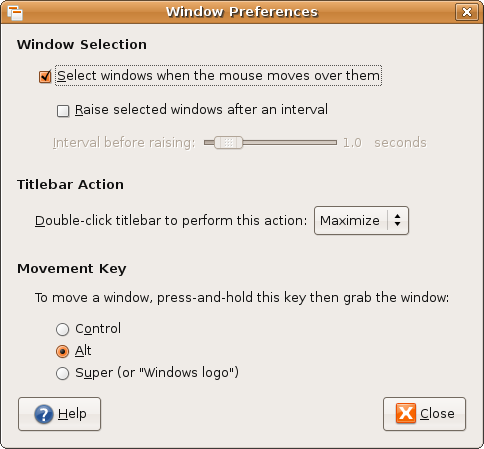
Something I found on one of my explorations, is this really handy feature (handy for me at least), which allows you to give a window “focus” (or selection) merely by putting your mouse over it. To activate it, click on “System”, go to “Preferences”, and then click on “Window”. Up pops a small selection window.
As you can see, I’ve ticked “Select windows when the mouse moves over them”. You can also have windows be raised to the top of the screen if you hold your mouse over them for a certain length of time. As my collegue at work found, setting the interval to “0” is not very useful…
There are a couple of other tweaks you can make here. I’ll let you explore them on your own 🙂
Always on Top
“Always on Top” allows you to basically tell the system that you want a window to be the upper-most on the screen, no matter what else you do. You can’t “Raise” anything above it. I tend to use this little gem with my next tip.
Set a window to be always on top by right clicking on the title bar (the big orange bar at the top of the window, which contains the minimize, maximize and close buttons). Click the “Always on Top” option. That window will now stick on top of your screen. Undo it, by right clicking again on the title bar, and clicking “Always on Top” again.
Password Gen (pwgen)
pwgen is a small, neat, command-line program to quickly generate fairly easy-to-remember, fairly secure passwords. You can install it by clicking here, or going to whichever package manager you prefer (synaptic, Add-Remove Programs, apt-get or aptitude) and installing “pwgen”.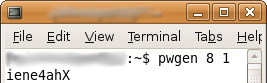
Use it simply by typing “pwgen” in a terminal (“Applications” > “Accessories” > “Terminal”). I tend to run it with the command “pwgen 8 1”, which generates one 8 character password.
Now, if you’re adding a lot of users to a system or something (I am currently at work), using a combination of these tips will save you time… I’ll leave it up to you to work out how to combine them. (Hint: resizing a terminal window like I did above is a good starting point.)