Open Office keeps automatically trying to guess what you’re typing? Sometimes it can be useful, especially if you’re doing something quite repetitive. However, it can also be a bit dumb at times.
Now, Open Office predictive text, actually comes under auto-complete. Don’t ask me why, as to my mind at least, that’s a completely illogical place to put it. Also, Open Office call it “Word Completion”
Configure Open Office Predictive Text
Here are a couple of things you can try to make it more useful.
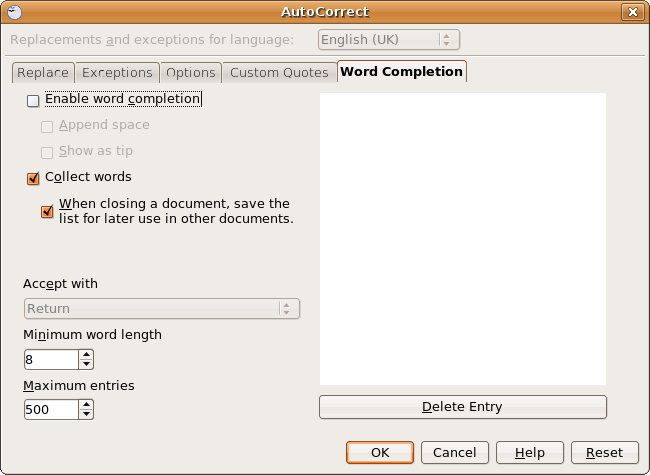
Click on “Tools” > “AutoCorrect…” > Click on the “Word Completion” tab.
- Increase the minimum word length.
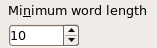 Make sure that the minimum word length is at least 8. Less than that, and you’re going to get it trying to auto complete too-short words, and get confused. More than 8, it will trigger less often. Tweak this for how much you want to use the predictive system.
- Delete False Positives
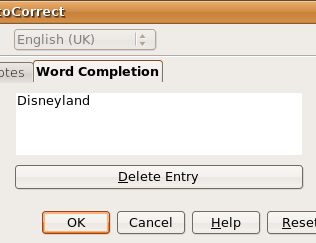 Sometimes, the predictive system just gets confused. An example of this, is if you have used “Disneyland” in a document, and then want to type “Disney” Open Office will keep auto-completing to “Disneyland”. Really, not helpful.
To fix this the only response, is to find and delete the offending word from the predictive system. Click on the word you want to remove (In this case, Disneyland), and click the “Delete Entry” button.
Note: The image has been cropped to make it fit. The dialogue box is longer than this.
Disable Open Office Predictive Text
If you just can’t get it quite to work how you want, then your last resort is to disable the feature. Click on “Tools” > “AutoCorrect…” > Click on the “Word Completion” tab.
Now, untick the box that says “Enable Word Completion”. Your Open Office will no longer automatically try to predict what you’re typing.
Note: if you leave “collect words” ticked, the system will still collect words to Auto Complete, but won’t actually use them. If you’re just turning the feature off for a little while, leave it ticked. Otherwise, untick it, to save memory, and a little bit of processor power whilst you’re working.
Hi, thanks for this. It’s what I was looking for. How do I scroll down the list of autocorrect entries, I wonder?
Dan
Hello Dan,
A scroll bar should appear once you have a list that stretches your list. Alternatively, you should be able to use the scroll wheel on your mouse to scroll down the list. Or, another way, select one of the items on the list, then hit the down arrow on your keyboard.
HTH,
Kirrus
Hi Kirrus. Thanks for that, but I’m missing something. I’m talking about in the Word Processing application, and I don’t see a list drop down. It just autocompletes the word I’m typing with one choice. If I hit enter, it accepts. Any ideas?
Open Office currently doesn’t have that sort of predictive text choice. The more you type, the closer you will get to the word you want.
Ah ha, good. Thanks for your time and help. I’m trying to see if I can live without the Microsoft apps, but at the same time I want to check out the features of OO.
Good luck,
Dan
I’m sure you can!
If you can get used to Firefox and Open Office, then making the jump to Ubuntu instead of Windows will be easier 🙂
Thanks so much! That “feature” was going to drive me crazy in about five minutes, I could tell.
I’m trying to figure out how to use the autocomplete feature in open office. What key do I hit to accept the word? I tried a google search on “open office use auto complete” and got 20 hits on how to turn it off. The open office help doesn’t say.
Thank you so much! I was trying to write my thesis and that feature was driving me crazy.
Glad I could help, Kim.
Peter, from memory, to accept you just hit Space or Enter, I can’t recall which, I’ve not used OpenOffice in anger in a long time!
Thank you so much;itworked! This ‘predictive text’ thing has been driving me crazy. I may use a computer but have no idea how to configure it or solve problems and did not know where to turn. You came up at the top of a Google search.I’ll put you in favourites
Thanks again,
David
Are you able to provide words for it to predict in the future? Also are you able to amend some of the words? Like it always predicts the plural before the singular, so I’ve been accepting the plural and deleting the s. Is there a way of amending the prediction to the singular?
@John, Yes! Just change the words in the ‘word completion’ listing
This was perfect! Seems sort of logical too, don’t know why I didn’t find on my own! Thank you so much.
Thanks. Easy to follow!
I’m very glad this is still helping people more than 9 years after I first wrote it 😉
🙂 Thanks again.
As soon as I disabled autocorrect, a new problem appeared (one I had just been thankful was not happening!): I am making a vocabulary list, and now each entry begins with a capital letter, which is annoying.
However, re-enabling autocomplete, while choosing an extremely high word length, plus deleting all the words collected so far is enabling me to continue making my vocabulary list without interference.
Thanks so much–I really appreciate your help!
i just wanted to say thank you. It was getting on my nerves so badly. every time i would type “the” it would highlight and put in “themselves” a word i hardly ever use
thank you for help shutting off the predictive text. Apache help tool did not find it.